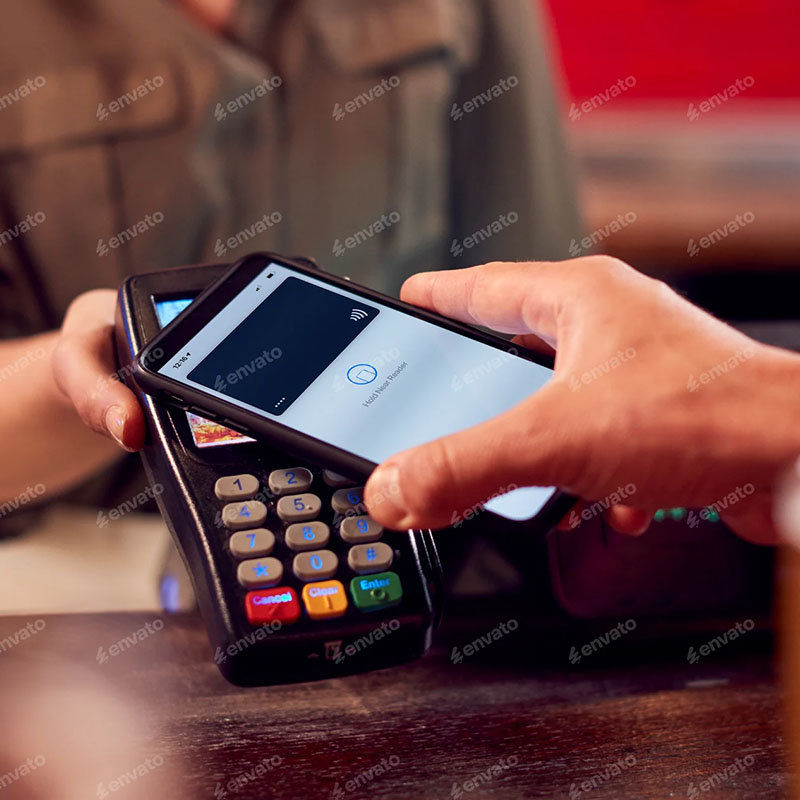
Effortless payments with BONAGO and Apple Pay

Enjoy the convenience of using your BONAGO card with Apple Pay — make fast, secure, and contactless purchases using just your iPhone or Apple Watch, no wallet required.

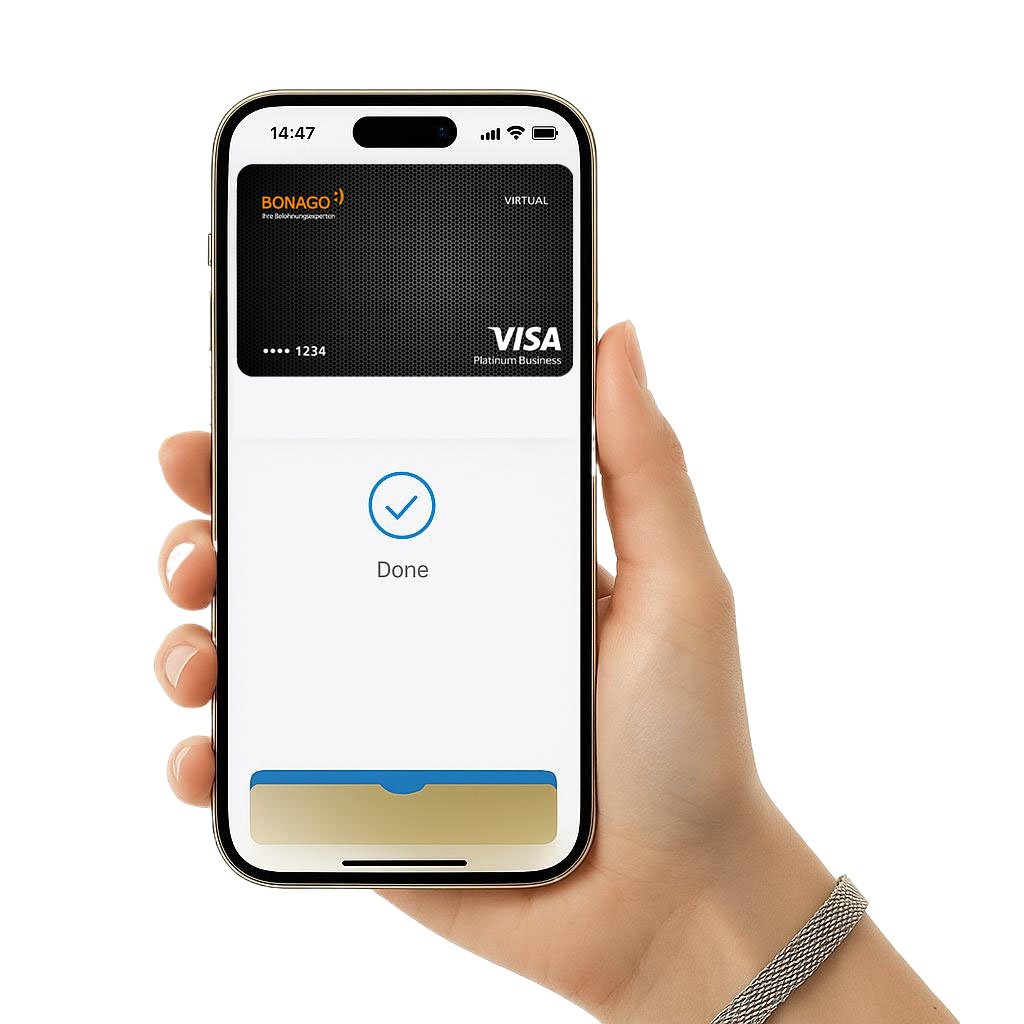
Apple Pay
BONAGO card with Apple Pay

Why choose BONAGO with Apple Pay?

Contactless icon

Fast and easy transactions

Pay instantly with your BONAGO card using Apple Pay on your iPhone or Apple Watch — no need to fumble for your wallet.

Security icon

Built-in protection

With Face ID, Touch ID, and device-specific codes, Apple Pay adds an extra layer of security to every BONAGO payment.

Mobile icon

Leave your wallet at home

Your BONAGO card lives in your Apple device, making every transaction seamless — whether you're commuting or shopping.
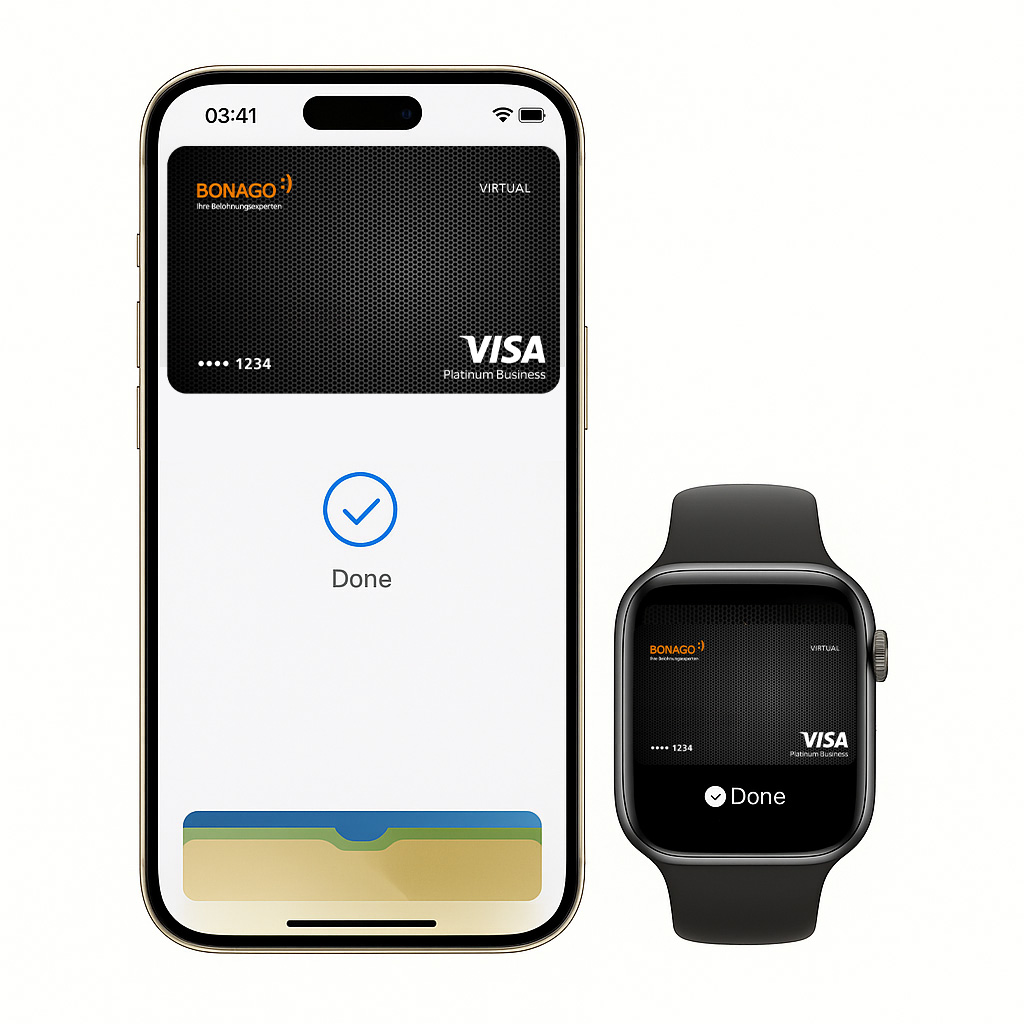
BONAGO card on iPhone

Add your BONAGO card in just a few steps

Open the Wallet app on your iPhone or Apple Watch. You can scan your BONAGO card or enter the details manually.

The setup takes only seconds and allows you to start making secure, contactless payments right away — anytime, anywhere.

Apple Wallet

Accepted wherever you shop

Your BONAGO card works with Apple Pay in stores, online, and in apps — wherever you see the Apple Pay mark or contactless symbol.

From local shops to major retailers, your payments are fast, secure, and always ready with just a tap or a glance.

Apple Pay & contactless logo
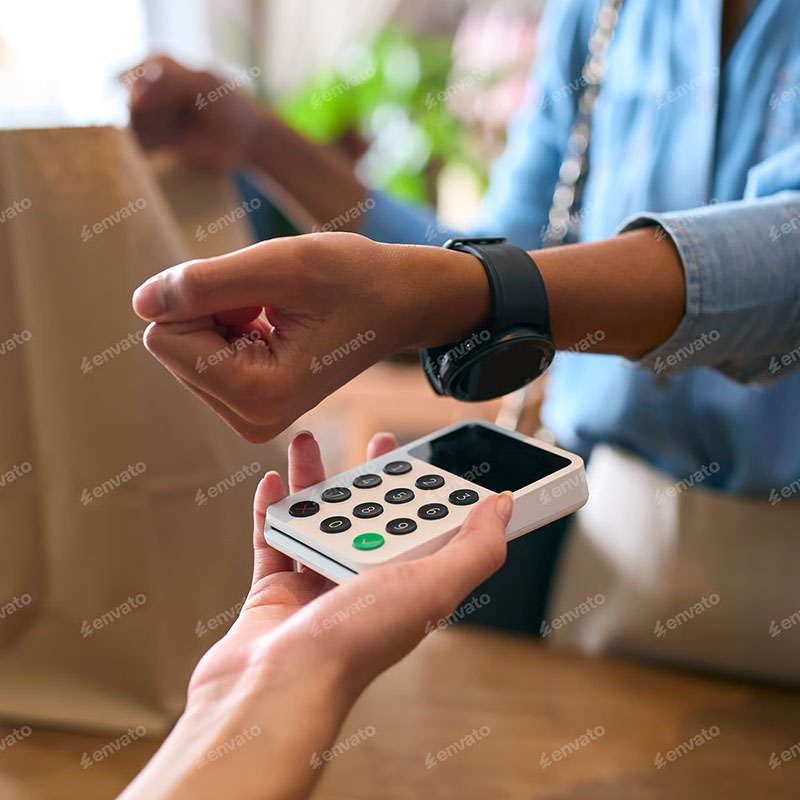
Paying with BONAGO card
Using BONAGO card

Make purchases with total ease

Simply unlock your Apple device and hold it near the terminal. No need to pull out your wallet or touch any buttons.

With BONAGO and Apple Pay, your payments are always quick, secure, and hassle-free — no matter where you are.

Frequently Asked Questions

Apple Pay is accepted anywhere you see the Apple Pay or contactless payment symbol — in stores, apps, and on websites. It's supported by millions of merchants around the world, including supermarkets, restaurants, and public transport.
Open your Apple Wallet app, tap the '+' icon, and follow the instructions to add your BONAGO card. Verification may require a one-time passcode or confirmation through the BONAGO app.
Apple Pay is Apple’s digital wallet that allows you to pay securely in-store, online, and in apps using your Apple devices. It replaces your physical cards with a safer, more private payment method.
Apple Pay works on iPhones, Apple Watches, iPads, and Macs that support Face ID, Touch ID, or the Wallet app. To check compatibility, visit Apple’s official website or your device settings.
Simply open the Wallet app on your Apple device, tap the '+' button, and follow the prompts to add your BONAGO card. Once added, your card will be ready for use within seconds.
No, Apple Pay transactions do not require an active internet connection. Your device uses secure local authentication and NFC technology to process payments offline.
This message appears if there’s an issue verifying your card details or identity. Please contact BONAGO support to complete the setup securely.
The one-time passcode is a verification code sent via SMS, email, or call to confirm your identity. It adds an extra layer of security to your Apple Pay enrollment.
Ensure your watch is paired with your iPhone and running the latest watchOS. Also, make sure your BONAGO card is not already in use or blocked.
If your device is lost or stolen, use the 'Find My' app or log into iCloud.com to suspend or remove Apple Pay. This prevents unauthorized access and secures your BONAGO card.
Open the Wallet app, select the card, tap the three dots (•••), and choose 'Remove This Card'. You can re-add it at any time following the same steps.
Immediately go to iCloud.com or use the 'Find My' app to suspend Apple Pay. This disables payments and protects your BONAGO card from misuse.
Contact BONAGO support right away to block the card and issue a replacement. In the meantime, you can remove the card from Apple Pay via the Wallet app.
When you unpair your watch, all stored data including Apple Pay cards are automatically removed. You'll need to re-add them if you pair the watch again.
You can add your BONAGO card to multiple Apple devices depending on your card’s terms. Each device requires separate authentication during setup.
Most recent Apple devices allow you to store up to 12 cards in Wallet. Older models may support fewer cards depending on the hardware.
Open the Wallet app, select your BONAGO card, and scroll down to view the latest transactions. This helps you track your spending in real-time.
Apple Pay displays 'Done' when the payment information is successfully sent. However, the transaction may still be declined by the merchant or your bank.
Yes, you’ll get instant push notifications for both successful and declined transactions. Make sure notifications are enabled in your device settings.
Yes, if you remove your BONAGO card from the iPhone Wallet, it will also be removed from any paired Apple Watches. Each device stores cards independently but stays synchronized.